TabWeaver Quick Start

From Tableau Cloud to a refreshable Excel table

Install TabWeaver, connect your Tableau Cloud account, build your first query, and load the results into a new Excel worksheet.

Excel 2016+ Windows desktop Tableau Cloud
Microsoft Excel showing a TabWeaver query, returned table, and chart
1 Choose fields in Tableau
Work with the results in Excel

The quick path

  1. 1Download
  2. 2Open Data
  3. 3Choose Table
  4. 4Sign in
  5. 5Select source
  6. 6Choose fields
  7. 7Save
  8. 8Refresh
Before you begin

Have these things ready

A little preparation makes the first query easy.

Excel on Windows

Microsoft Excel 2016 or later for Windows. Excel for the web and Excel for Mac are not currently supported.

Installation permission

Permission to install an Excel add-in. Most users do not need administrator privileges, although organizational policies may differ.

Your Tableau Cloud site

The full site address, including the site content URL—not only the Tableau Cloud pod address.

Tableau access

Permission to connect to the data source and the API Access capability on that extract/data source or its containing project.

A supported sign-in

Your Tableau Cloud username and password, or a Personal Access Token (PAT) name and secret.

A good first source

For your first test, use a new blank workbook and a small, familiar Tableau Cloud data source.

Your Tableau security still applies. TabWeaver respects Tableau permissions and row-level security. It signs in as your account and can query only the data Tableau makes available to that account.
Authoring access required. This walkthrough requires Free, Unlimited, or Enterprise access. Viewer users cannot create or edit queries, but can refresh eligible shared queries manually or through Refresh on Open.
1

Download and install TabWeaver

Install the add-in, restart Excel, and confirm the new controls appear.
  1. Go to TabWeaver.com and select Download Free.
  2. Complete the download form and select Send me the download link.
  3. Open the email from TabWeaver and use its link to download the latest installer. Check spam or junk if the message does not arrive.
  4. Run the installer. If prompted to close Excel, save your work and close Excel before continuing.
  5. Open or restart Excel, then select the Data tab.
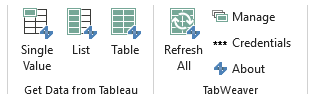
TabWeaver controls on Excel's Data ribbon: Single Value, List, Table, Refresh All, Manage, Credentials, and About
Look toward the right side of Excel's Data tab for the Get Data from Tableau and TabWeaver groups.

You should see:

  • Get Data from Tableau: Single Value, List, Table
  • TabWeaver (shown as TabWeaver – Free in the Free edition): Refresh All, Manage, Credentials, About
If TabWeaver does not appear: Close and reopen Excel, confirm that you are using Excel desktop on Windows, and verify that the installer finished. If the controls still do not appear, email support@tabweaver.com.
2

Choose how to start

The first time TabWeaver opens, activate your access or continue free.

License key

Unlimited or Viewer

Enter the key under Activate with License Key, then select Activate.

Work email

Enterprise

Enter your work email, complete any verification, and refresh activation status if needed.

Select Do not show on open if you do not want to see the welcome window each time Excel opens. To return to license information later, select About in the TabWeaver ribbon group.

What to expect with the Free edition

The Free edition may be used for personal or commercial work. It lets you create queries and refresh them manually on the computer where they were created.

  • Refresh on Open is not included.
  • Queries saved under Free are tied to the computer on which they were saved.
  • A Free-authored query cannot be edited or refreshed on another computer, even if that computer has a paid TabWeaver license.
  • After upgrading, edit and save the query once on its original computer before sharing it for refresh elsewhere.
3

Start your first Table query

Table is the most flexible first query and needs the fewest choices.

  1. Open a new or existing Excel workbook.
  2. Select the Data tab.
  3. In Get Data from Tableau, select Table.

TabWeaver opens in a task pane on the right side of Excel. If you have not connected before, the pane shows the fields needed to connect to Tableau Cloud.

Why start with Table? It accepts one or more fields, requires no destination cell, and loads to a standard Excel table by default.
4

Connect to Tableau Cloud

Enter the full site address and choose a supported sign-in method.

Enter your Tableau Cloud site

  1. Under Enter your Tableau Cloud address, paste the full Tableau Cloud site address.
  2. Choose Username & Password or PAT (Personal Access Token).
  3. Select Continue.
https://10ay.online.tableau.com/#/site/MyTableauSiteName/home

The address must include /site/ followed by your site content URL. The pod address alone, such as 10ay.online.tableau.com, is not enough.

Create a Personal Access Token, if needed

Step 1Sign in to Tableau Cloud in your browser.
Step 2Open your profile menu and select My Account Settings.
Step 3Under Personal Access Tokens, name the token and create it.
Step 4Copy the secret immediately and store it securely.
Step 5Enter the token name and secret in TabWeaver.
Tableau shows the PAT secret only once. Treat it like a password. If the Personal Access Tokens section is unavailable, ask your Tableau Cloud administrator whether PAT creation is enabled for your account. See Tableau's account settings guidance for token management and expiration details.

Enter your sign-in details

  • For Username & Password, enter your Tableau Cloud username and password.
  • For PAT, enter both the PAT name and PAT secret.

Select Remember me on this device if you want future manual or automatic refreshes to sign in automatically. Remembered credentials are encrypted for the current Windows user and stored on that computer; they are not placed in the workbook. Without this option, the current query can finish, but later refreshes fail until you re-enter credentials. On a shared or managed computer, follow your organization's credential policy.

Select Continue. TabWeaver advances automatically when authorization succeeds.

SSO and OAuth are not currently available in TabWeaver. If your organization requires either method, ask your Tableau administrator whether PAT authentication is available for your account.
5

Select a data source

Choose the source, then confirm that your account has API Access.

  1. Use the search box if needed.
  2. Select the data source you want to query.
  3. Select Continue.
Your Tableau accountThe identity TabWeaver uses
Project or data sourceWhere the permission is assigned
API Access ✓Required before TabWeaver can load fields
API Access required. Your Tableau account must have the API Access capability for the selected extract/data source or its containing project. Being able to view the source in Tableau does not necessarily grant API access. Ask a Tableau administrator or data source owner to assign it if needed.

You can also double-click a source or select it and press Enter. Search filters only the current page. If the site contains many data sources, use the page controls below the list to move to another page and search again.

If the source is missing, confirm that you connected to the correct Tableau Cloud site and that your account has permission to connect to it.

6

Build the query

Name the query, select a few fields, and keep the first run simple.

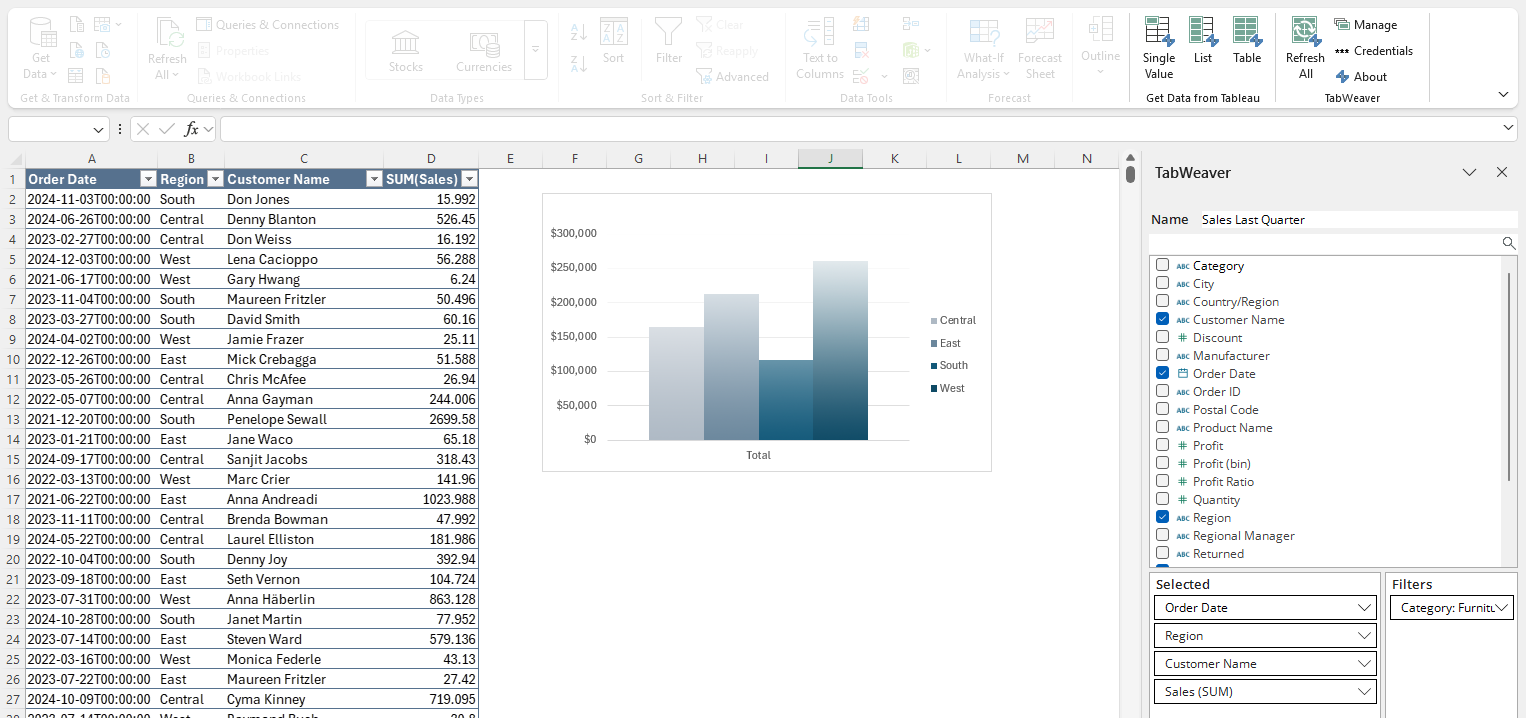
The Query Builder shows a generated query name, available fields, a Selected area, a Filters area, options, and output choices.

  1. Replace the generated name with something short and descriptive, such as Regional Sales Data.
  2. Check each field you want to include, or double-click a field to add it.
  3. Confirm that the fields appear under Selected.
  4. Leave Filters empty for the first run.
  5. Leave Aggregate Results selected.
  6. With Unlimited or Enterprise access, leave Refresh on Open selected if you remembered credentials and want automatic refresh. Free does not include this option.
  7. Leave Add to Data Model cleared.
  8. Under Load Results To, leave Table selected.
  9. Select Save.
TabWeaver Query Builder with fields selected, a filter, options, and Excel output choices
The Query Builder keeps fields, filters, refresh options, and output choices together in one pane.

What the default options do

Aggregate Results

Combines rows with identical values across selected fields. It does not automatically SUM or AVG numeric fields.

Refresh on Open

Refreshes when the workbook opens. Available with Unlimited, Viewer, and Enterprise; remembered credentials are required.

Add to Data Model

Also loads results into Excel's data model for Power Pivot. Leave it cleared unless you need it.

Load Results To: Table creates a standard Excel table. Other available destinations include PivotTable, PivotChart, and Connection Only.

If Save is unavailable: Add at least one field under Selected and use a query name of 77 characters or fewer. Names may contain letters, numbers, spaces, and ! @ # $ % & * ( ) _ + - = [ ] { } | , < >. A Single Value query also requires an aggregation and destination cell.
7

Confirm your first result

TabWeaver loads the data into a new worksheet beginning at cell A1.

After you select Save, TabWeaver creates the query, loads the results, and closes the task pane.

Excel worksheet containing a TabWeaver result table and chart
A new worksheet contains an Excel table. Headers match the fields you selected. The table contains the expected permitted data. The query appears under TabWeaver Manage.

Save the workbook normally. The TabWeaver query definition stays with the workbook so it can be managed and refreshed later.

8

Refresh your data

Use TabWeaver's refresh controls—not Excel's native Refresh All command.

Refresh every eligible query

On the Data tab, select Refresh All in the TabWeaver group.

Refresh one query

Select Manage, choose the query, then select Refresh.

Excel has another Refresh All button. Use the one inside the TabWeaver group. In the Free edition, the group is labeled TabWeaver – Free.

A successful refresh updates the workbook without a confirmation dialog. If a query is not eligible under the current license—or another problem occurs—TabWeaver explains what it skipped or could not refresh.

Open workbookManual or Refresh on Open
Use saved credentialsNo interactive prompt during refresh
Update ExcelResults replace the prior query output

The Manage pane also lets eligible users edit, rename, duplicate, and delete queries.

Viewer users can refresh eligible shared queries with Refresh All or Refresh. If an eligible shared query already has Refresh on Open enabled, it can also refresh automatically for a Viewer user with remembered credentials on that computer.

If a later refresh reports a sign-in failure: Select Credentials in the TabWeaver group, enter the connection and sign-in details again, and select Remember me on this device if policy permits. After sign-in, TabWeaver continues to the data-source list; select Cancel there if you are not creating another query. Then retry.
Reference and next steps

Build on your first successful query

Choose a different output, add filters, understand the Tableau API quota, and share workbooks safely.

Choose the right query type

Once the Table workflow feels familiar, choose the query type that matches the result you need.

Flexible

Table

A dataset with one or more columns and rows. Select at least one field.

One column

List

A list such as customers, products, or regions. Select one field.

KPI

Single Value

One summarized value. Select one field, an aggregation, and a destination cell.

Table and List queries can load to a Table, PivotTable, PivotChart, or Connection Only, and can also be added to Excel's data model.

For Single Value, choose exactly one unmerged destination cell in an unprotected workbook and worksheet. The cell must sit outside an unrelated Excel table. If it already contains something, TabWeaver asks before overwriting it.

Add a filter when you are ready

Filters are optional. After the first unfiltered query:

  1. Select Manage in the TabWeaver group.
  2. Select the query, then select Edit.
  3. Right-click an available field and select Add as Filter.
  4. Configure the filter and select OK.
  5. Select Save.

Available types include lists, text matching, numeric and date comparisons, relative dates, and Top/Bottom N.

TabWeaver Top/Bottom N filter configured for the top ten product names by profit

Be aware of Tableau's API quota

TabWeaver queries use Tableau's VizQL Data Service. Tableau applies a site-wide hourly quota.

Creator licensesAssigned to the Tableau Cloud site
100 queriesAdded per Creator license
Hourly site quotaShared across the entire site

If the quota is reached, TabWeaver queries may fail until capacity becomes available again. Contact your Tableau administrator, and see Tableau's current VizQL Data Service limitations for the latest details.

Share a workbook safely

Each query and refresh respects Tableau permissions and row-level security applied to the signed-in account.
Treat the workbook like an exported data file. Tableau permissions control what TabWeaver retrieves, but anyone who can open the workbook can see data already loaded into it. Apply your organization's Excel, SharePoint, or file-access controls.

Results travel with the workbook

People can view data already loaded into the file even without TabWeaver installed.

Credentials do not

Remembered usernames, passwords, and PAT secrets stay encrypted on the local computer.

Refresh requires access

Another computer needs TabWeaver, access to the same Tableau Cloud site and source, and an eligible license.

Free queries stay local

Free-authored queries cannot be edited or refreshed elsewhere until upgraded and re-saved on the original computer.

Troubleshooting

Open the item that matches what you see.

“Invalid Tableau Cloud Site URL”
Paste the full address, including /site/YourSiteContentUrl. Copying it from an open Tableau Cloud page is usually easiest.
Sign-in fails or returns to the connection fields
Confirm the selected authentication method. On the Data tab, select Credentials and re-enter the username/password or PAT name/secret. After sign-in, select Cancel at the data-source list if you are only updating credentials, then retry. SSO and OAuth are not currently available; ask whether PAT authentication is allowed.
The data source is not listed

Confirm that:

  • You connected to the correct Tableau Cloud site.
  • Your account has permission to connect to the source.
  • You checked the other pages of the source list, if present.
You can view the source, but TabWeaver cannot load its fields
If TabWeaver says you have not been granted API access, ask a Tableau administrator or data source owner to assign the API Access capability for the extract/data source or its containing project.
“Failed to load data sources. Wait a moment and try again.”
TabWeaver returns to the previous step. Wait briefly, confirm that Tableau Cloud is available to you, and start data-source selection again.
The data source or field list times out
When TabWeaver asks Try again?, select Yes. If the problem continues, wait briefly and retry, then confirm that Tableau Cloud is available in your browser.
Save is unavailable
Add at least one selected field and use a supported query name of 77 characters or fewer. Invalid names turn the name box pink. A Single Value query also needs an aggregation and destination cell.
“Failed to save query”
Retry once after confirming that the workbook is still open and editable. If the message returns, note the full error details and contact support.
“Query changes were applied, but signing out failed”
The query was saved. Verify the workbook output instead of creating the query again. Update credentials before the next refresh if needed.
The query returns no rows
Remove or loosen filters, then confirm that the source contains matching data your Tableau account is permitted to access.
The data did not refresh
Use Refresh All in the TabWeaver group, not Excel's native Refresh All. If TabWeaver reports a sign-in failure, update Credentials, cancel at the data-source list if you do not need another query, and retry.
TabWeaver requires an update
Save your work, select Update Now, then close or restart Excel when prompted so the update can finish.
Still need help?
Email support@tabweaver.com. Include the step, exact message, and whether you used Username & Password or PAT. Never send your password or PAT secret.

Where to go next

After your first successful query, try one of these workflows:

  • Add a filter to narrow the result.
  • Apply SUM, AVG, MIN, or MAX to a selected field.
  • Load directly to a PivotTable or PivotChart.
  • Use Add to Data Model for Power Pivot or data too large for an Excel worksheet.
  • Use Manage to edit, rename, duplicate, refresh, or delete queries.
  • Use Single Value to place a KPI directly into a worksheet cell.

Ready to start weaving?

Install TabWeaver, open Excel's Data tab, and turn a familiar Tableau Cloud source into your first refreshable table.

Download TabWeaver free